
QODDI DOCUMENTATION
Ruby
Last updated

Qoddi automatically builds your Ruby app.
In order to do that, Qoddi uses buildpacks to detect and build your app automatically.
Before Building your code
Commit Gemfile, Gemfile.lock, and a Procfile. Rack applications use config.ru; Rack is the web interface, while Rake is a task runner.
Keep your chosen Ruby and Bundler versions consistent between local development and the build. See Ruby buildpack support.
Create your app on Qoddi
Create a new app and link it with your repository using SSH keys.
Read this article for a detailed procedure or check this video :
Gemfile
A Gemfile is mandatory for your app to be able to build. Gemfile is the main configuration file of your Ruby app.
Run locally bundle install to generate the Gemfile.lock and make sure it’s available on your repository before building your app.
Specifying the Ruby version
Declare your tested Ruby version in Gemfile, then update the runtime recorded in Gemfile.lock using that interpreter locally:
source "https://rubygems.org"
ruby "3.4.12"
bundle update --ruby
bundle installCommit both files. Heroku resolves the Ruby runtime from the lockfile and uses its BUNDLED WITH section to select Bundler. Review that section when changing Bundler.
Supported runtimes
| Ruby series | Listed patch | Status on review date |
|---|---|---|
| 4.0 | 4.0.9 | Maintained |
| 3.4 | 3.4.12 | Maintained; upstream default |
| 3.3 | 3.3.13 | Security fixes only |
Ruby 3.2 and earlier are end-of-life. Old binaries being listed does not mean those branches remain supported. JRuby needs a matching Ruby compatibility version and engine version; consult the current Ruby/JRuby matrix instead of reusing an old engine pair.
Runtime references checked November 2, 2026. Available binaries and defaults depend on the selected Qoddi builder and stack; confirm the resolved version in the build log.
Procfile
The Procfile informs the engine of the type of app you are running and prepares the infrastructure accordingly. On Qoddi the Procfile always starts by web: regardless if your app is a worker or a web app. To expose your app to Internet traffic you can change the settings on the app settings page.
The Procfile basically contains the type of app and the initial script to run when the app starts :
web: bundle exec ruby server.rbor with Puma:
web: bundle exec puma -C config/puma.rbDeclare app dependencies
Declare all gems your app uses in Gemfile. Install a production server such as Puma with Bundler:
bundle add pumaCommit the resulting Gemfile and Gemfile.lock, preserving exact filename capitalization. Add your framework and other dependencies through the same workflow, test upgrades locally, and do not copy historical Sinatra or Puma pins into a new project.
Default Behavior
Bind your server to 0.0.0.0 and the PORT configured for the Qoddi app. Keep that port consistent with the app’s network settings; clients reach the service through Qoddi’s HTTP/HTTPS routing.
Support for Rack and additional buildpack support
Rack apps provide a config.ru entry point and the required server gems. If frontend assets require Node, configure the Node buildpack and its runtime explicitly rather than depending on a Ruby buildpack fallback. See multiple buildpacks and Node.js configuration.
Ruby Default Web Server
Declare the production web process explicitly in a Procfile. Default process detection varies with the framework and buildpack, and is not a substitute for selecting and testing your server.
Install Puma as Web Server
Add Puma to your application with bundle add puma, commit both Bundler files, and set the Procfile:
web: bundle exec puma -C config/puma.rbA small starting configuration in config/puma.rb is:
threads_count = Integer(ENV.fetch("RAILS_MAX_THREADS", "3"))
threads threads_count, threads_count
bind "tcp://0.0.0.0:#{ENV.fetch('PORT')}"
environment ENV.fetch("RACK_ENV", "production")
Set PORT in the app environment and align it with network routing. This starts a single process; add workers only after measuring memory and concurrency needs. For Rails, set RAILS_ENV=production as well and use the configuration generated by your Rails version when it contains framework-specific setup.
See Puma configuration for threads, workers, and lifecycle hooks.
Launch a Console Command
Please check this article on how to launch a command directly to your running app. This can be used to perform database migrations, launch local scripts, or perform database backups.
Ephemeral Disk
Contrary to Marketplace apps that can use Qoddi’s virtual disk features to store and retrieve persistent data, apps created from code use an immutable file system.
For instance, you can temporarily write data locally to process files during your application’s life. Still, the data written into your app’s disk is not persistent and gets wiped out after your app restart.
All apps restart at least once every 24 hours to apply a new setting or to deploy a new build.
To store data and keep it persistent you can use external services like Amazon S3 or Wasabi, an S3-compatible storage service with very affordable pricing.
Add a domain name
Please check this article for a detailed method on how to use your domain name with Qoddi apps.
Define environment variables
Note: Environment variables in your app settings are injected during the build process. If the build of your app needs to use an env variable, make sure to set it before requesting the build.
Qoddi lets you externalize your app’s configuration: the Qoddi cluster will automatically inject the data when the app starts or restart.
Environment variables can include any external data your app needs to run, like external resources, database addresses, encryption keys, etc…
To add an environment variable, access your app settings and click “Add ENV Variable” :
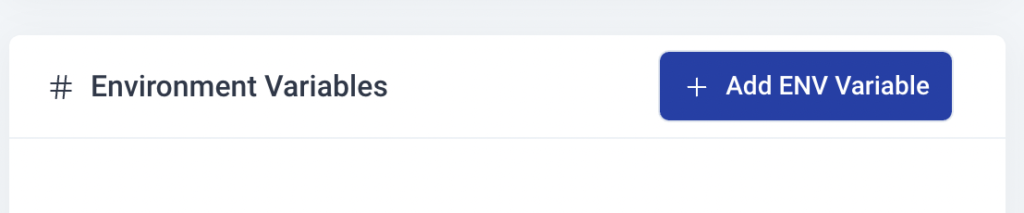
Enter the key (like DATABASE_USER) and the value and click “Add”. Qoddi will automatically add your environment variable and restart your app after a one-minute delay (to let you add more env variables if necessary without restarting the app each time a new variable is added).
Provision a database
Qoddi Marketplace includes all popular datastore engines, including Mysql, Postgres, MongoDB, and Redis.
To add a database to your app, click on Marketplace and select the database you want to run, then create the new app database inside the same stack as your Ruby app.
Once the app is running, visit the database app’s settings and retrieve the “internal name” :
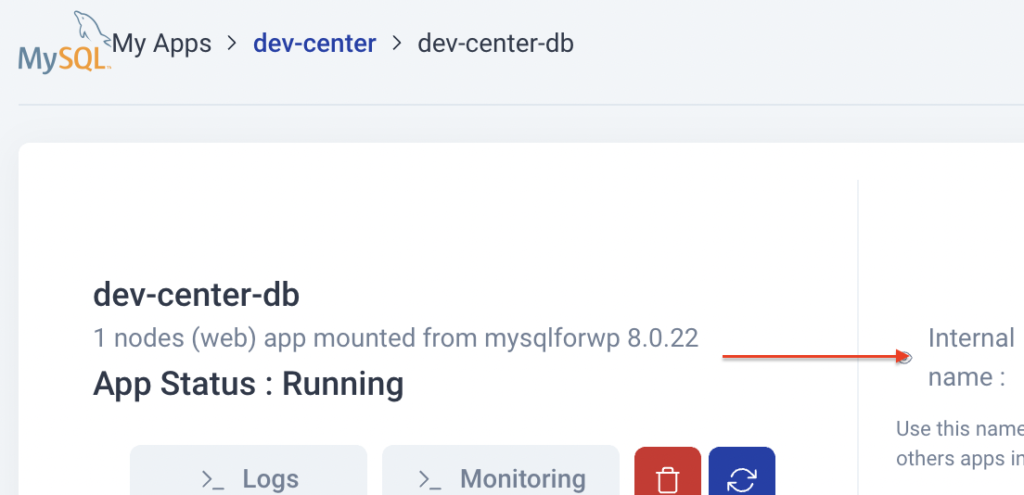
Use this internal name as you would use a server address, for instance for MySQL this name replaces the usual “localhost”. Some scripts require you to add the database port at the end of the server address. Qoddi uses a common port for each database software, for MySQL it will be 3306 and you can write it like that inside your scripts: internal-name:3306
Postgres usually uses credentials sent inside the login URL, like that : postgres://<user>:<password>@<internalname>:5432/<database>
The login and password information is available inside the Environment Variables of the database app.
Note: Qoddi’s datastores run on a private and encrypted network. Therefore SSL support is deactivated for all datastores available on Qoddi. Ensure that your code doesn’t require using SSL before deploying your app.
Reach your app from another app
Inside your app stack, you can reach any other Qoddi app member of this stack on any port. Qoddi automatically routes the traffic internally and opens the appropriate port. By opposition, your app is only reachable on ports 80/443 outside Qoddi.
To reach your app internally, retrieve the internal name from your app settings page :
This name can be used to reach your app from another app inside the same stack. Use it in any form that works with your script :
http://<internalname>
<internalname>
http://internalname>:port
Note: https:// is not available, all the traffic inside apps is already encrypted by the cluster.
Migrate the database
If your application uses a database, you may need to launch a command to migrate the database before the application can start. This can be done from your app settings page under Console Commands.
Encryption
Qoddi uses at-rest encryption for the app’s virtual disks, builds images, and encrypts transport inside the cluster. To make sure the traffic is encrypted between your app and the browser of your users you can set up SSL certificates for any domain name connected to the app (including Qoddi’s default domain name).
Scale your App
From your app settings, you can scale your app vertically and horizontally: by upgrading the app size (refer to our pricing for app sizes details) or by adding more nodes.
Additional nodes will run another copy of your app inside another Qoddi server located inside the same cluster (same geographical location). Traffic is automatically sent to the least occupied node by Qoddi’s load balancer.